
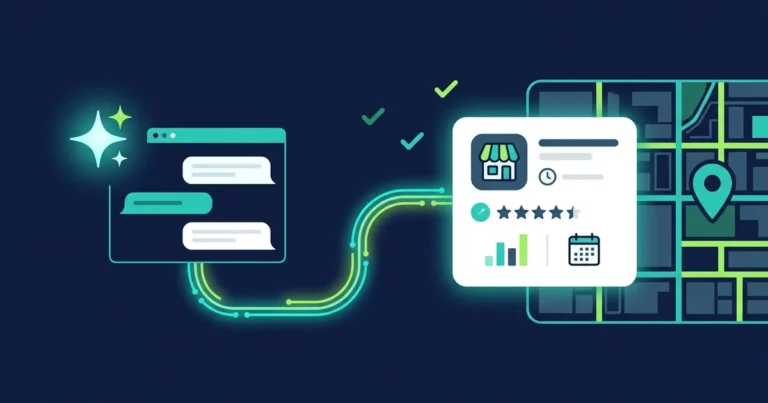
You can connect your Google Business Profile directly to Gemini, then ask it in plain language to update hours, attributes and links, draft review replies, schedule posts and show you which keywords bring customers to you. The connection works on gemini.google.com, for a personal account that manages only one profile. The full guide is below.
Connecting Google Business Profile to Gemini is a Connected App in Gemini that gives it access to your Google Business Profile: your reviews, customer questions and performance data. Once connected, Gemini can also make changes to the profile when you ask, not just answer questions.
“This is a clear sign of what we’re seeing from Google right now: they want their AI to manage every aspect of your business and your visibility on Google.”
Omri Kfir, Co-founder, DigiAssets
What did Google launch, and what can Gemini do with your Business Profile?
In June 2026, Google announced two features for small businesses in the Gemini app: a Google Business Profile connection and a “Business notebook” (Google’s blog). It has been rolling out gradually since then, which is why some business owners already see it and others don’t.
Once you connect, you can simply ask Gemini to do things that used to require logging into the profile dashboard. According to Google’s Help Center, these are the supported actions (Google Business Profile Help):
| Area | What Gemini can do |
|---|---|
| Profile updates | Regular and special hours (including holiday hours), attributes such as Wi-Fi or outdoor seating, website and social links, action links for ordering and booking appointments, location details, and menus for food businesses |
| Reviews | View ratings and reviews, draft replies, and delete replies you’ve already published |
| Google posts | Create, schedule, publish and delete Update, Offer and Event posts |
| Performance | Impressions, website clicks, direction requests, bookings, and the top keywords people use to find the business |
| Feedback analysis | Summarize reviews and identify recurring themes |
The second part is the Business notebook. It’s a single place that brings together your conversations, your profile and your website, and it proactively flags things like unanswered customer questions or missing holiday hours, issues that can hurt you on Google Maps.
Want to know what else is missing from your business’s presence on Google? Get a free website review →
Who can connect Gemini to a Business Profile, and why might you not see it yet?
There are several requirements, and any one of them could explain why it isn’t showing up for you. According to Google’s Help Center (Google Business Profile Help):
- One profile only. Right now it only works if you own or manage a single verified profile. If you manage multiple profiles under the same Google account, the account isn’t eligible.
- Personal Google account. Google Workspace accounts (work or school) aren’t supported yet. You need to sign in with the personal account linked to the profile.
- Age 18 or older.
- Keep Activity turned on. The Keep Activity setting in Gemini must be enabled, otherwise there’s no connection. Check it at myactivity.google.com/product/gemini.
- Browser only. According to Google, the connection is available in the Gemini web app, gemini.google.com, not in the mobile app.
- Not available in Europe or the UK. Israel is not excluded.
- Gradual rollout. Google states explicitly that the feature is rolling out gradually and may not be available to you yet.
Pay attention to language. Hebrew isn’t currently on the list of languages Google names for this feature (which includes English, Spanish, French, German and Dutch, among others). That’s why all the prompts in this guide are written in English. If Gemini doesn’t respond to a Hebrew prompt the way you expected, switch to English.
How do you connect Gemini to your Google Business Profile, step by step?
You connect in five steps: check that the account manages one profile, turn on Keep Activity, go to gemini.google.com on a computer, ask a question about the business and approve the connection. It takes a few minutes, as long as your account meets the requirements above.
Step 1: Check which account manages the profile
Go to business.google.com with the account you think manages the business, and make sure only one verified profile appears there. If several businesses appear, this account can’t connect for now.
Step 2: Turn on Keep Activity in Gemini
Go to myactivity.google.com/product/gemini with the same account and make sure Keep Activity is turned on.
Step 3: Go to gemini.google.com on a computer
Sign in with the exact same personal Google account that manages the profile. A different account, even one that’s yours, won’t see the business.
Step 4: Ask Gemini something about the business
For example: How did my business do this month? If Gemini doesn’t use the Business Profile app, add @Google Business Profile to your prompt.
Step 5: Approve the connection
If the app isn’t connected yet, Gemini will offer to connect it. Approve and follow the on-screen instructions. From that point on, Gemini can see the business’s reviews, questions and performance.
Want to disconnect? You can do it anytime in the Connected Apps settings at gemini.google.com/apps.
How do you create a Business notebook in Gemini?
The Business notebook requires that your profile is already connected. After connecting, if you’re eligible, Gemini will offer to create one. If the offer doesn’t appear, write a prompt with @Google Business Profile and Gemini may offer to create it. In the last step, you enter or confirm the business’s website URL.
You’ll find it in the sidebar, under Notebooks, under your business name. Inside are proactive insights (for example, hours, a description or photos missing from the profile), suggested prompts and recent conversations (Google Business Profile Help).
Which prompts should you send Gemini after connecting?
After connecting, start with seven prompts: hours and holidays, attributes and links, review replies, a scheduled post, monthly performance, keywords and a review summary. They cover everything I mentioned in the video, and they’re written in English because of the language limitation. Replace whatever is in square brackets.
1. Update business hours and holiday hours
@Google Business Profile Update my regular hours to: Sunday to Thursday 09:00 to 19:00, Friday 09:00 to 13:00, closed Saturday. Then show me which upcoming holidays have no special hours set. Do not save anything until I confirm.
2. Fill in attributes and links
@Google Business Profile List all attributes and links on my profile that are empty or missing. Suggest the ones that fit a [business type] business, and wait for my approval before adding them.
3. Draft replies to recent reviews
@Google Business Profile Show my 5 latest reviews and draft a reply to each one. Mention the specific thing each customer wrote about, keep every reply under 60 words, write in Hebrew, and do not publish anything until I approve.
4. A scheduled Google post
@Google Business Profile Write an Offer post in Hebrew about [the offer]. Valid from [date] to [date]. Show me the draft first, then schedule it for [date and time] after I approve.
5. Monthly performance analysis
@Google Business Profile How did my business do this month compared to last month? Show impressions, website clicks, direction requests and calls, and tell me what changed the most.
6. The keywords that bring in customers
@Google Business Profile Which search keywords did people use to find my business in the last 3 months? Group them by intent and tell me which of my services do not appear in them at all.
7. What reviews say about you
@Google Business Profile Summarize the common themes in my reviews from the last 6 months: what customers praise, what they complain about, and which complaint repeats the most.

Pro tip: Cross-check prompt 6 against the list of services on your website. A service people search for that doesn’t appear on your profile or your site is an opportunity. We wrote about choosing the right profile categories in a prompt for choosing Google Business Profile categories, and about analyzing competitor reviews in the guide How to turn competitors’ Google reviews into a content plan with Claude.
Does connecting Gemini improve your Google Maps ranking?
The connection itself won’t boost your rankings. It saves you work. What does matter is what you do with it: Google says businesses with complete, accurate information are more likely to show up in local search results, asks you to list your hours including special hours, and recommends replying to customer reviews (Google Business Profile Help).
These are exactly the tasks Gemini now handles faster: spotting missing holiday hours, drafting review replies and filling in attributes. The businesses that benefit will be the ones that use it regularly, not the ones that connect it once and forget about it.
This is also the part that interests me most from an SEO perspective. The announcement shows where Google is heading: its AI doesn’t just answer customer questions, it also manages the information Google shows about you. When we at DigiAssets work on visibility in AI engine answers, consistent and accurate business information is the foundation of the work.
What should you check before letting Gemini change your profile?
Gemini doesn’t just suggest. It acts. Google notes it can also delete posts and review replies, so it’s worth following a few simple rules:
- Ask for a draft before anything is executed. Every prompt in this guide ends with “Don’t save until I approve.” Keep that sentence.
- Check every review reply before it goes live. A public reply with a wrong detail about the customer can do more harm than no reply at all.
- Don’t ask for broad delete actions. If a post needs to go, specify exactly which one.
- Check the profile itself after a change. After updating hours or links, open your profile on Google Maps and make sure the change looks the way you intended.
- Managing multiple locations? Right now it simply won’t work on an account that manages several profiles. Don’t change owner permissions just to get early access.
FAQ
Does connecting Gemini to your Google Business Profile cost money?
Google’s Help Center doesn’t mention any payment or subscription as a requirement for the connection. The requirements listed there are a personal Google account, one verified profile, age 18 or older, and Activity saving turned on.
Why don’t I see the option to connect my Business Profile in Gemini?
The common reasons are an account that manages more than one profile, a Workspace account instead of a personal account, Activity saving turned off, or using the mobile app instead of gemini.google.com. Also, the rollout is gradual and hasn’t reached everyone yet.
Can I write to Gemini in Hebrew?
Hebrew isn’t currently on the list of languages Google specifies for this feature. Write the prompt itself in English, and ask Gemini to write the review replies and posts in Hebrew.
Can Gemini delete things from my profile?
Yes. According to Google, it can delete posts and review replies. That’s why you should always ask it to show a draft and wait for your approval before any change.
What is the business notebook in Gemini?
A central space in Gemini that connects your chats, your Business Profile and your website. It proactively flags things like unanswered customer questions, missing holiday hours or missing photos, and suggests ready-made prompts.
How do I disconnect Gemini from my Business Profile?
Through the connected apps settings at gemini.google.com/apps. You can connect and disconnect at any time.
Want the DigiAssets team to check what’s holding your business back on Google and in AI engines?
- Analysis of your current organic performance
- 3 immediate opportunities identified
- No commitment